
Vehicle view - Section 2 + 3
Section 2:

In the second section, you can see all the costs for the selected vehicle, edit them and add new ones.
The total costs for the fuel bills, care and maintenance and the contract data are displayed under Costs. You can display the costs for a specific period by entering a date in the input field or by clicking on the calendar  icon and selecting the start and end date in the calendar.
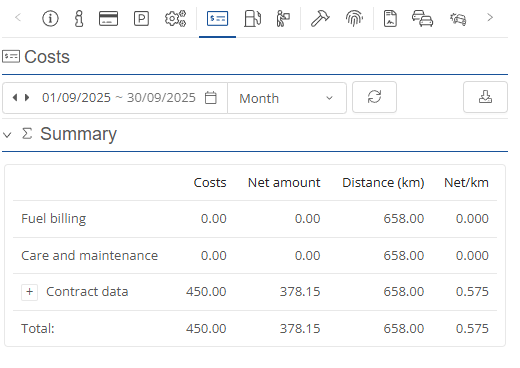
Alternatively, you have a ready-made selection in the drop-down menu.
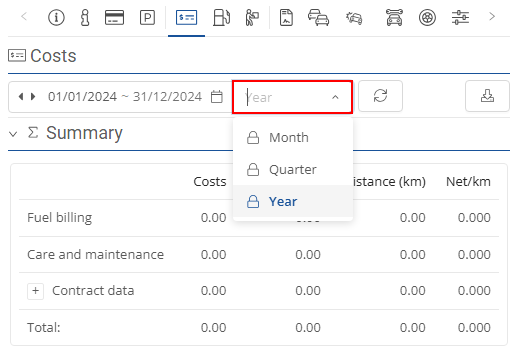
Alternatively, you have a ready-made selection in the drop-down menu  .
.

Click on the Export  -button to export the cost summary as a CSV file.

Fuel bills:
Receipts can be entered under Tank billing. To do this, click on the  -button.
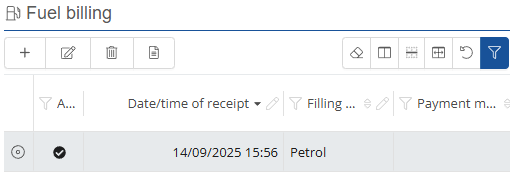
Enter the required information in the view that opens and then click "Save".

Care and maintenance:
In the care and maintenance area, you can assign all types of costs to the vehicle. You can add another cost item by clicking on the "Add"-button.
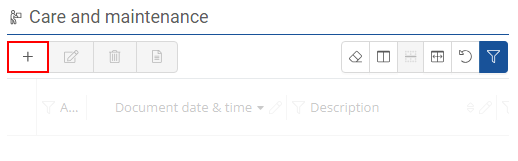
After clicking, a window opens where you can enter the date and time of the receipt, a description, the cost type, the amount and the VAT. The tax and net amount are calculated automatically. By clicking on the cogwheel next to the cost element, you can add further cost elements or edit existing ones.

After adding an entry, you can select and edit it, delete it and view or upload documents.
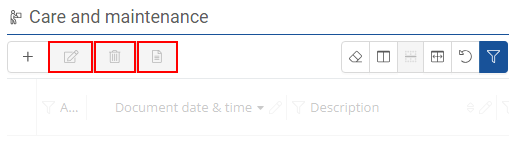
In the care and maintenance section, you can also clear the filter and configure the columns displayed.

Section 3 :

In the user-defined skills area, skills or properties can be assigned to the vehicle that a driver needs in order to be allowed to drive the vehicle. Additional properties can also be entered or ticked in this view
Custom abilities:
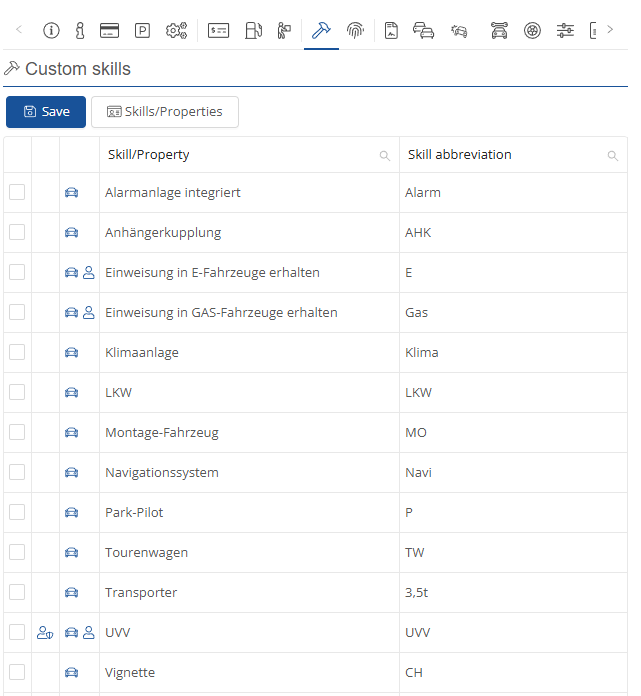
Here, the user has an overview of the custom skills and can edit and save them.
Under these can be added and removed in the selection menu.

These can be added under  , changed via
  , or removed under
 , as well as
  . To add the new skill/property, click on
 .
.
Custom permissions:
Custom permissions can be stored and configured here.
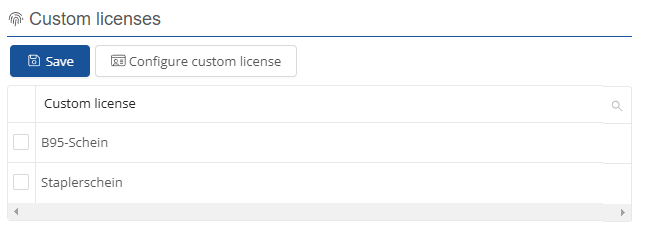
New authorisations can be created here  .
.
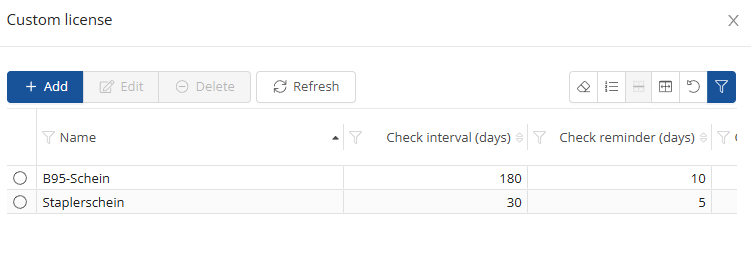
These can be added under , changed via , or removed under , as well as . To add the new custom license, click on .
