Asset management
The view and settings for the system and map management can be found on the home page under Fleet Manager and the drop-down menu below it.
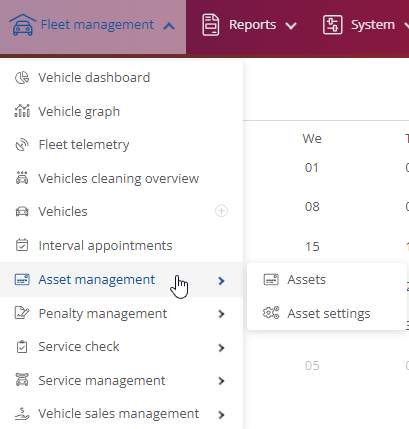
Assets:
When you click on Assets, you will be taken to the complete overview of assets and card management, where you can set and manage their progress or details.
You can create an attachment or cards via  , change them using
  , and delete the attachment as well as the card with this
  -button or also
  .
.
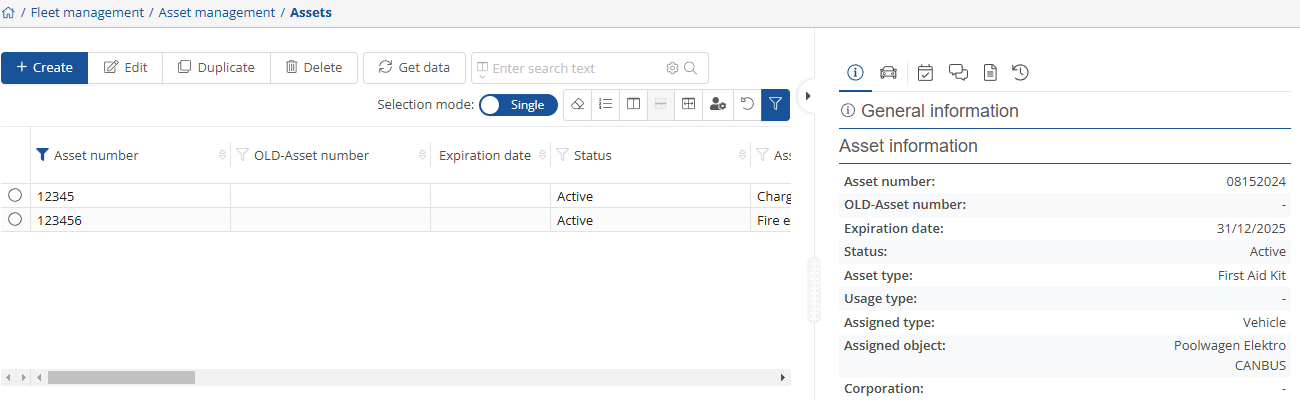
On the right-hand side, you will find all the information about the facility or the card that is relevant or has been specified.
Firstly, the general information can be find under  and the selected vehicle can be viewed via
  . The stored interval dates can be accessed using
  .
.
The forum  , the stored documents
  , and the asset history
  are also available.

Asset settings:
When you click on Asset settings, you will be taken to the complete overview of asset & card settings, where you can configure the basic settings for these.
Under Custom Fields, you can add or save new settings. You can change them using and duplicate them easily by clicking .
If you want to set an asset or card to inactive, click on  . To refresh, select
  . If you only want to see the active assets and cards, please press
  . However, if you want to see all of them, you should use
  .
.

You can store the desired types under “Usage type.”
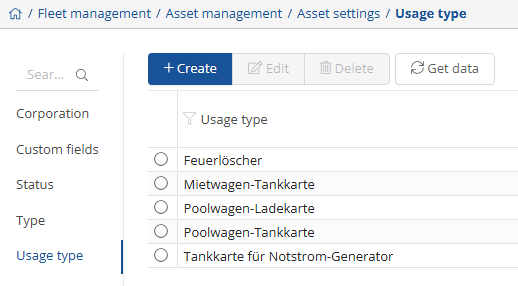
Here you can add or store something new via . You can change it using and remove it with  . To update, click on .
You can store the desired statuses under "Status".
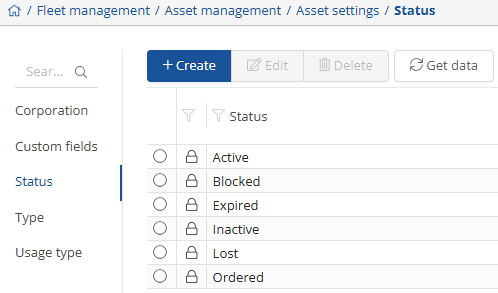
Here you can add or store something new via . You can change it by clicking on and remove it by pressing . To update, select .
Under “Type”, you can store the desired types or the type of asset. You can change them with and remove them with . To update, tap .
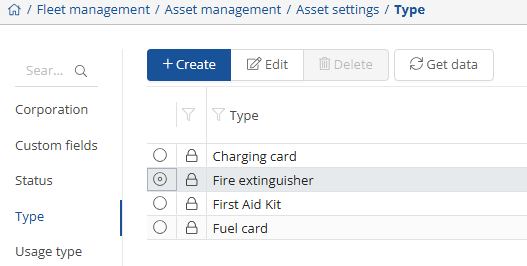
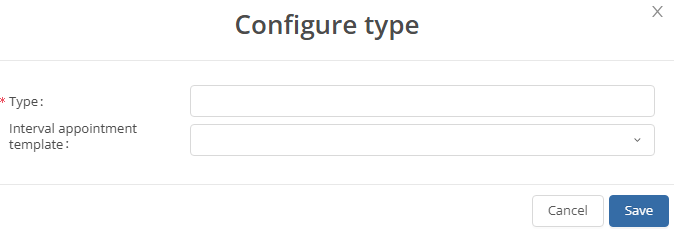
Here you can add or store something new by selecting . It is important to enter the type, e.g., charging card or fire extinguisher. It is possible to store the interval schedule template directly.
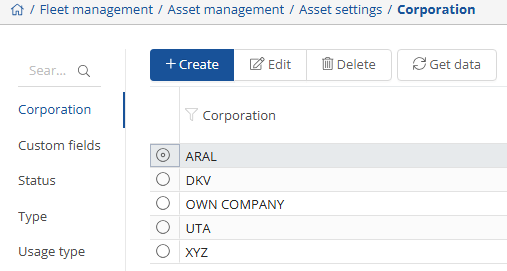
Under “Corporation”, you can store the various corporations you want, for which you may have an interface. You can change these under and remove via . To refresh, simply click on .