
Damage reports
In the damage reports window, you will see damage reports that have already been added. These can still be edited and you can add further notifications.
The damage reports can be filtered according to active ( ) and all (
 ) reports.
You can also show and hide the details  .
.

Add damage:
Once you have clicked the  -button, another window will open where you can enter all the details about the vehicle and the damage.


Here you can enter the address of the accident and the complete detailed accident description.

For the cause of the accident, you must specify (mandatory field) what type of accident it is (rear-end collision, etc.). You must then state (mandatory field) who caused the accident (own fault, etc.).
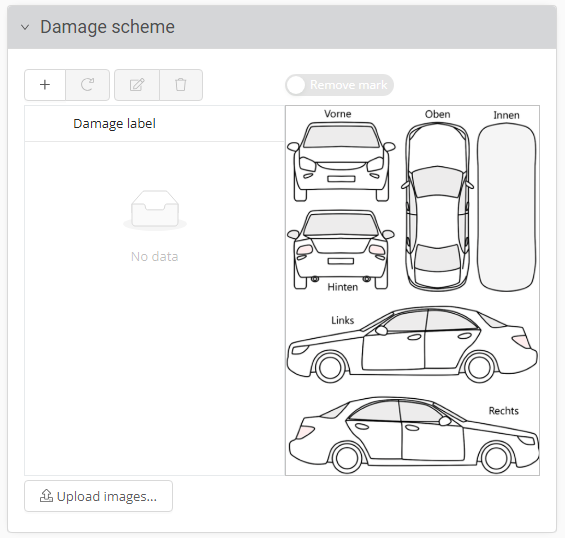
In the subsequent damage diagram, you can indicate which areas/parts of the vehicle are affected.
You can mark further damage by clicking on the  .
.
You also have the option of uploading pictures of the damage.

Once you have entered and checked all the details correctly, you can save them and close the damage report.
Process damage:
The  -button opens the damage report that has already been created and adjustments can be made.
Delete damage:
To delete an existing damage report, select the corresponding report and then click on the button  .
.
Deletion is only possible if the fleet manager has not processed the damage report.
Show tour:
You have the option of jumping from a damage report to the corresponding tour. To do this, click on  .
.