
Edit routes
There are different tour types in the logbook. You can find out what these mean and how they are processed here.
Change tour type:
To open the options menu, right-click on a tour. You now have the option of declaring the tour as a business-, work- or private tour.
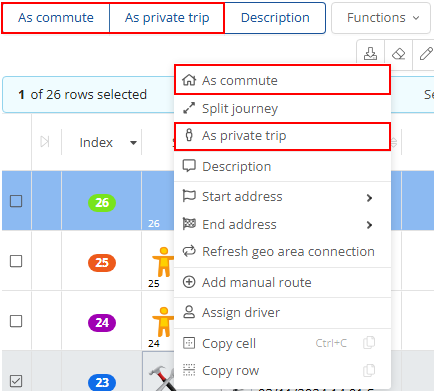
A business tour must always include a description.
If you mark a tour that does not yet contain a description as an official tour, this tour is highlighted in red in the table. You can only close the period when it no longer contains any tours with a red background or when all service tours contain a description.
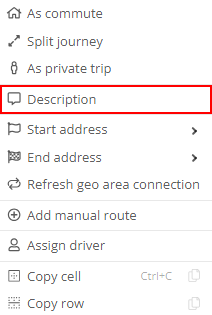
To describe a tour, right-click on the corresponding tour and select Description.
In the route description, you can enter a description manually or select a template from the list. Finally, click on  to save your selection or entries.
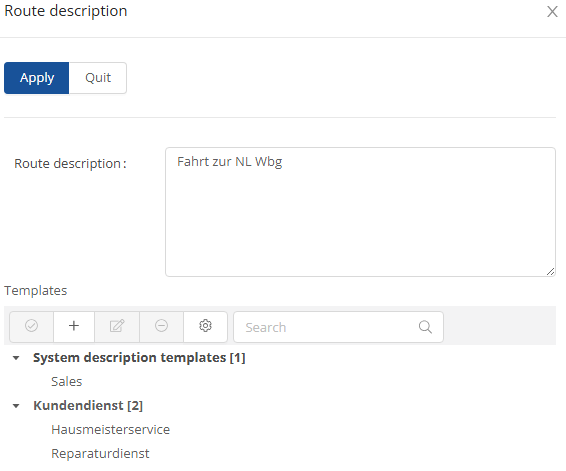
To create a new template, click on  the icon in the template menu bar.

A new window then opens in which the new template must be assigned to a group, a short name and a description must be entered. The fields are mandatory fields.

Once you have made all the entries, you can save your entries using  and close the window.
In the event of a GPS reception failure or a technical defect in the GPS unit in the vehicle, it is possible to enter one or more manual tours in the logbook. In this way, the resulting data gap can be closed. Manual tours are highlighted in yellow in the logbook.
Right-click on a tour in the tour booking table and select  .
.
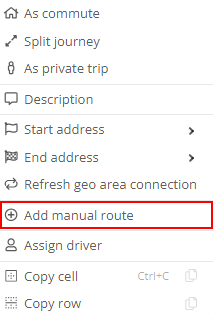
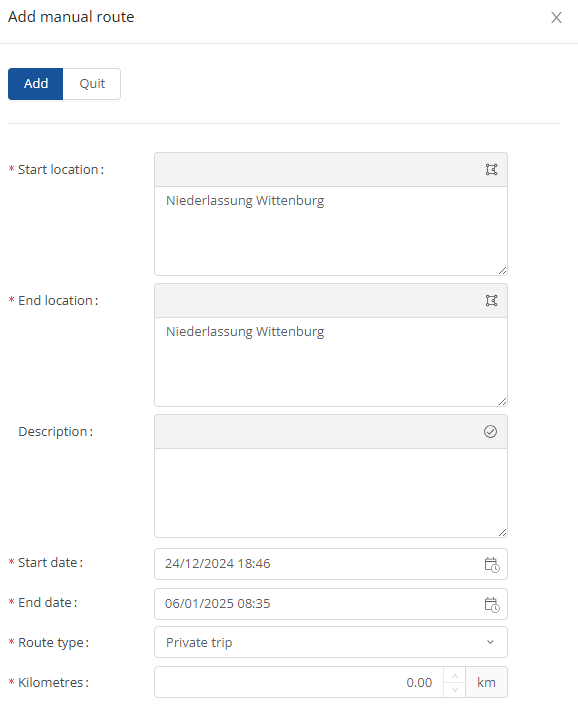
The system automatically transfers the address of the selected tour to the address fields of the manual tour. The first manual tour must start at the last destination recorded by GPS before the data gap and the last manual tour must end at the next starting point recorded by GPS. The travel time of the manual tours must also fit into the period between the tours recorded by GPS.
Enter a description for the tour if it is a business trip. Also enter the start date and time as well as the end date and time and select the tour type. Enter the kilometers traveled. The program subjects the details to a plausibility check as soon as you click on  .
.
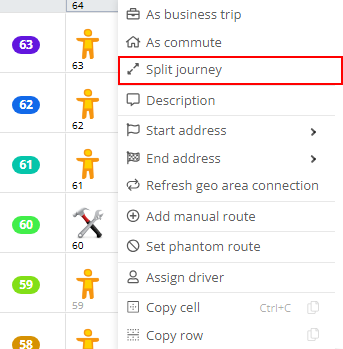
Split tour:
The Split tour function gives you the option of subdividing a tour. For example, if a tour takes you from the office to the shops and then to the customer, you can combine the partial routes and use the split function to divide the tour.
In the window that now opens, select the sliders according to the proportion of business, work and private tours in the total journey. If part of the route was part of a business tour, enter a description for this part of the route in the field provided. The sum of all trip distances always corresponds to the original tour.
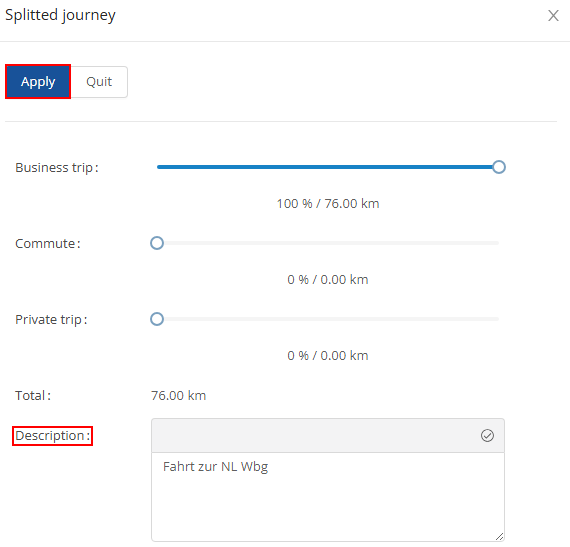
Click on Apply to save the previously entered details.