Driver's logbook
In the logbook, you can edit periods and tours and save different views.
After logging in, the Fleet management tab opens automatically. Here you can see an overview of all vehicles for which you have authorization. All relevant vehicle information is displayed in the table. Click on the Logbook tab to open your logbook.

You have the option of choosing between driver mode and vehicle mode. Vehicle mode allows you to edit the tours of a vehicle, while only your tours can be edited in driver mode.
Select your vehicle from the drop-down menu and specify the period for which you want to display your logbook. To do this, you can use the  -icon to open the calendar and select the desired period or use the
  -icon to select a period. Then click on get data
  .
.

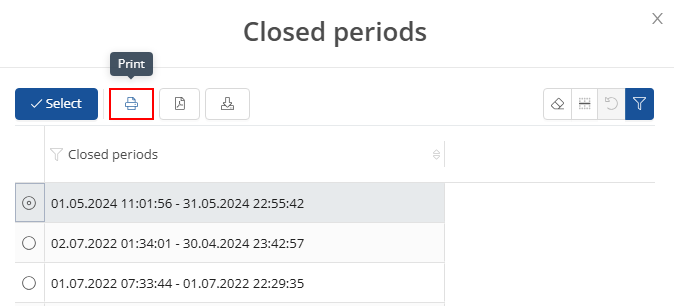
You can use the  button to display periods that are already closed.
If you want to save this view as the start view, click on Settings and then on Application settings in the drop-down menu.

Save view:
In the settings menu that opens, you can check the Load on startup box under Startup settings and then make further settings. To save your settings, click on  .
.

Driver's logbook report:
To print out the logbook for the tax office, select a closed period from the overview and click on  . CarControl will now create a PDF file for you, which will be accepted by the tax office.