
Service management
The Service Management view and settings can be found on the start page under Fleet Manager and the drop-down menu below.
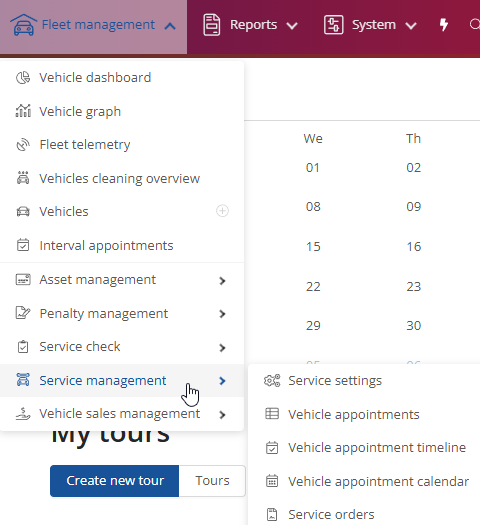
Service settings:
The view and setting of the service setting can be found on the start page under Fleet Manager and the drop-down menu below.
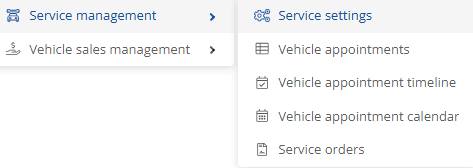
If you click on the service settings, a new window opens where the various settings are displayed.
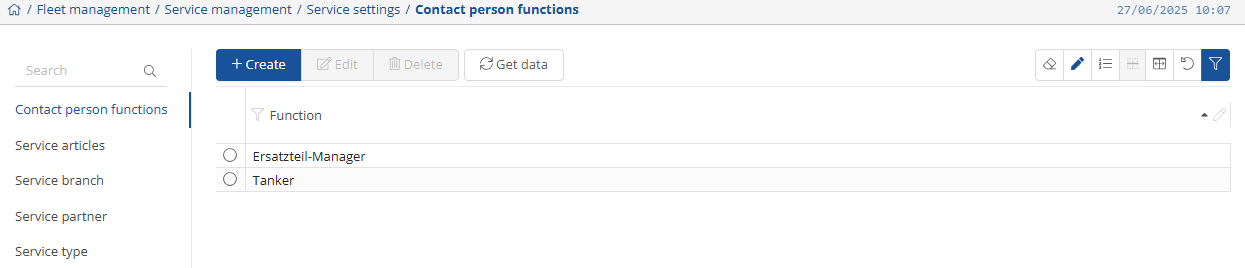
Contact person functions:
It is possible to store “Contact person functions” such as spare parts manager. You can do this via the  -button.
You can change it at any time using the  -button, remove it again via
  and update it at any time by clicking on
  .
.
Service articles:
Under “Service articles” you can view and manage your stored articles. You can  ,
,  and
and  them at any time.
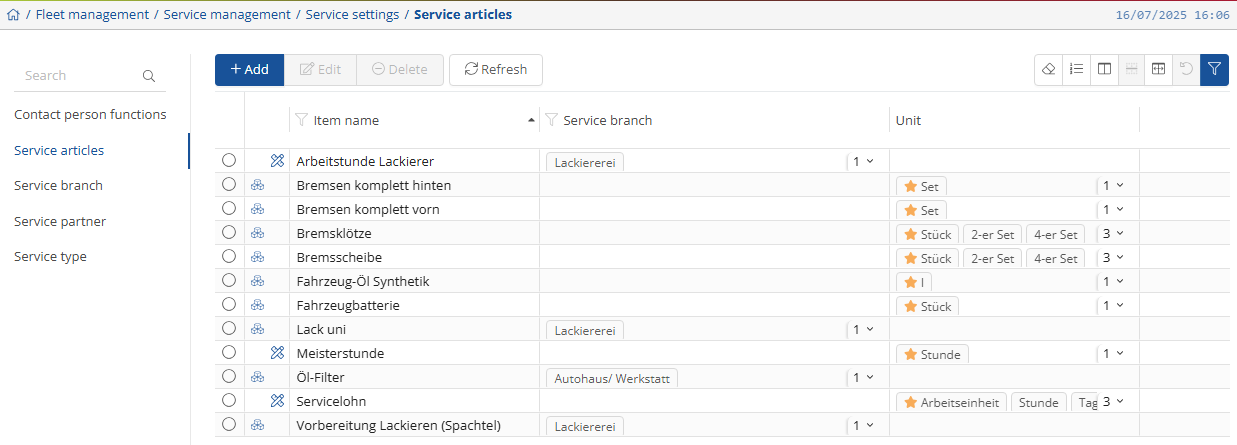
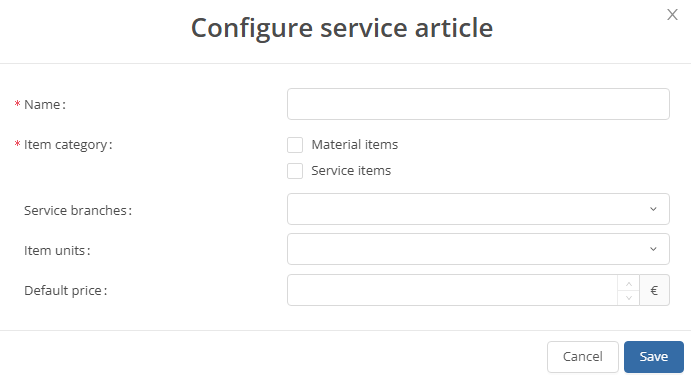
If you want to create a new item, a new window will open where you can enter the required information.
Once you have done this, click on  and the new article will appear in the overview.
Service branch:
In the service partner sector settings, you can add service partner branch and rename existing ones.
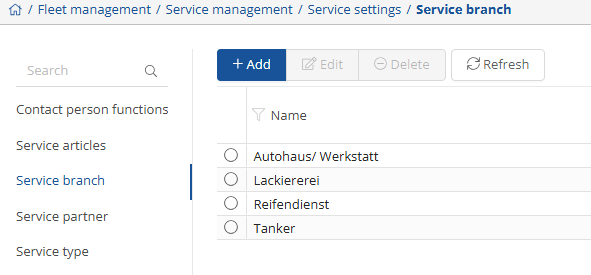
You can create a new service partner sector by clicking on the -button.
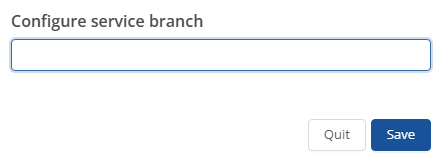
You can save the new service partner sector by clicking on the -button.
You can use the  -button to edit an existing service partner sector. A similar screen opens as when adding.
Service partner:
In the service partner settings, you have the option of adding and configuring service partners.
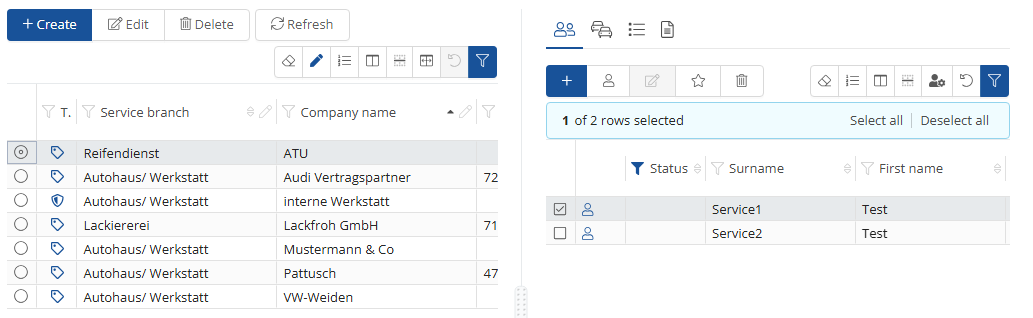
You can add a new service partner by clicking on the  -button.
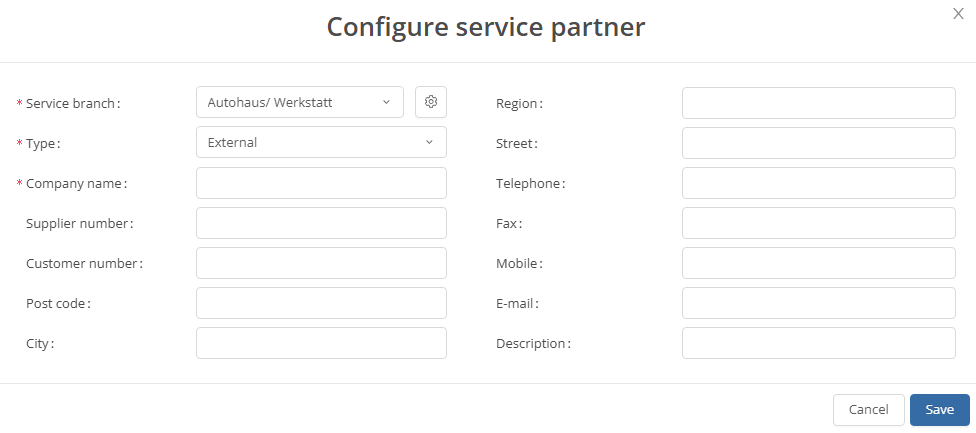
Fields marked with an asterisk are mandatory.
Here you have the opportunity to enter all the necessary information about the service partner.
You can edit an existing service partner using the -button. A similar screen opens as when adding.
Service type:
Under “Service type” you can view and manage your stored types. You can add to them at any time using  , change them by clicking on
  and remove them using
  .
.
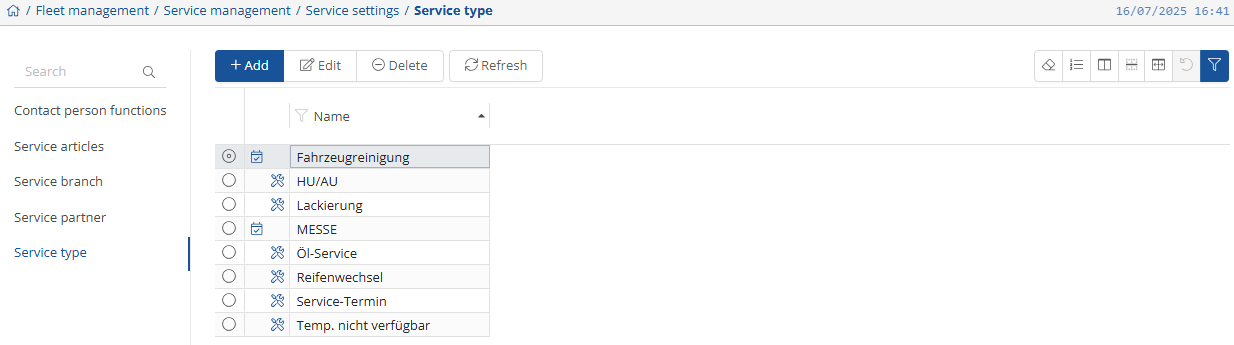
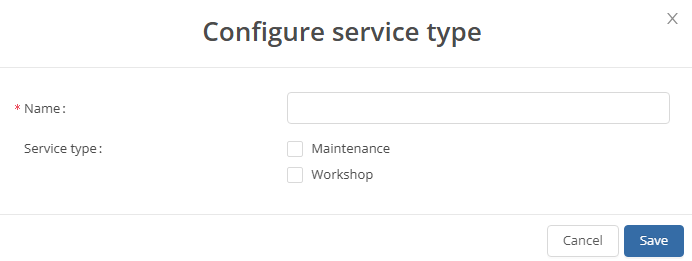
If you want to create a new type, a new window opens where you can enter the required information.
Once you have done this, click on and the new article will appear in the overview.
Vehicle appointments:
You can find the view and settings for vehicle appointments on the home page under Fleet Manager and the drop-down menu below it.
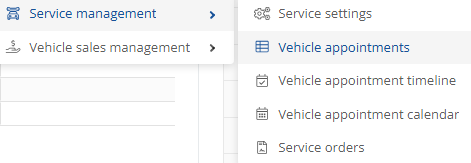
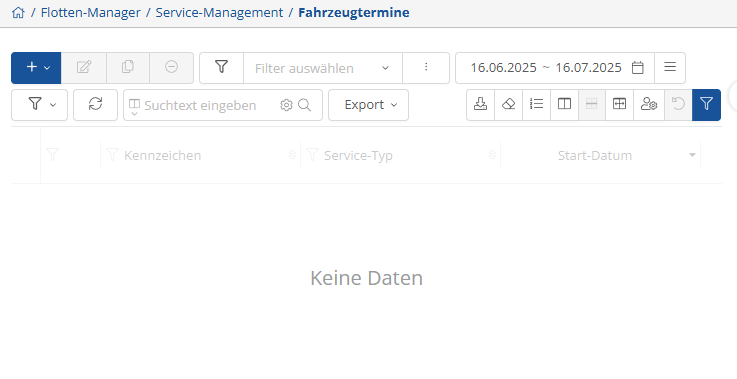
When you click on the vehicle appointments, a new window opens showing the various settings.
You can use  to create new vehicle appointments, use
  in order to edit, duplicate with this
  -Button, or delete something
  .
.
You can create and manage one via the three dots  . You can also use the calendar
  to display the period you want.
In addition, you have the option of creating an export  .
.
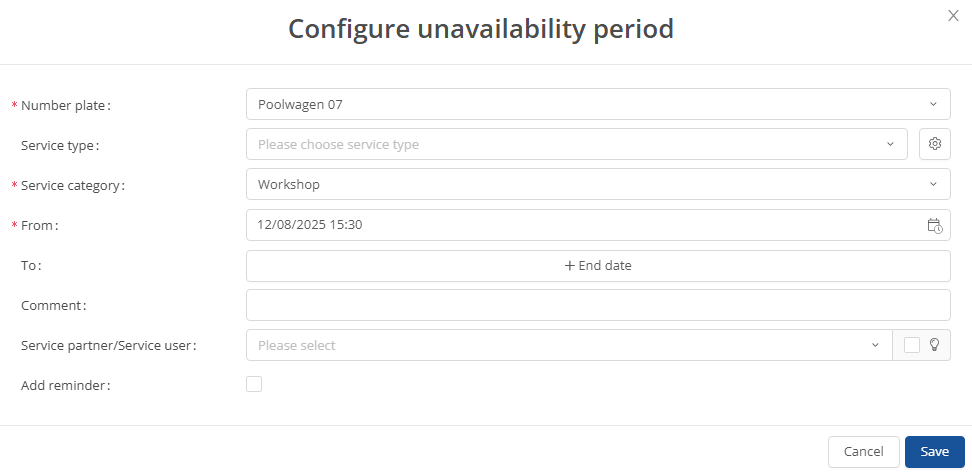
If you want to create a new appointment, click on  and select the desired category from the drop-down menu. This will open a window where you can enter the desired data and then click on
  -button.
Service appointment timeline:
The view and settings for the service timeline can be found on the home page under Fleet Manager and the drop-down menu below it.
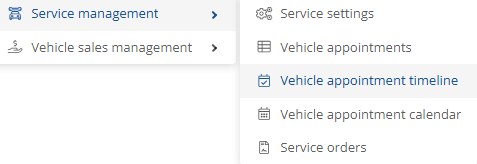
When you select the service timeline, a new window will open displaying the various settings.
You can use  to create a new appointment for the vehicle, via
  to edit, duplicate
  , or delete
  something.
You can create and manage one via the three dots. You can also display the desired time period via the calendar  .
.
In addition, you have the option of creating an export .

If you want to create a new appointment, simply click on and select the desired category from the drop-down menu. This will open a window where you can enter the desired data and then go on .
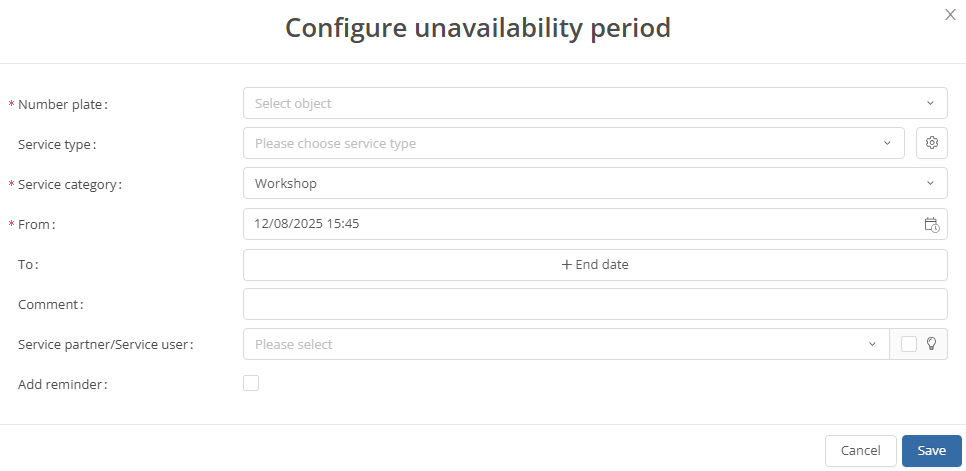
Vehicle appointment calendar:
You can find the view and settings for the vehicle schedule on the home page under Fleet Manager and the drop-down menu below it.
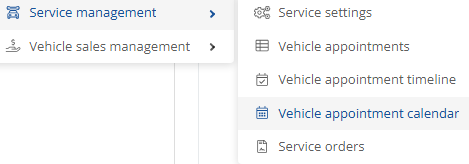
When you click on the vehicle appointment calendar, a new window opens showing the various settings.
You can add  a new appointment for the vehicle, edit
  , duplicate
  , or delete
  something.
You can manage a filter using the three dots .
You can also display the desired time period via the calendar  .
.
In addition, it is possible to have an export created .
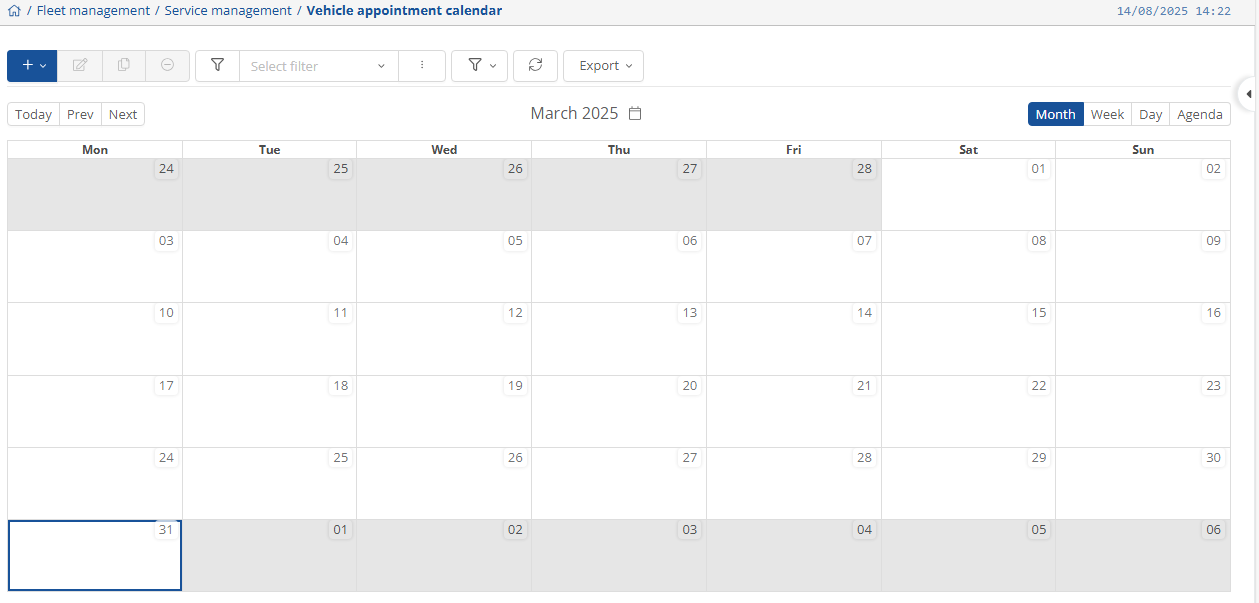
In the calendar, you can display the desired time periods and adjust them in the upper right corner if necessary.
Service orders:
You can find the view and settings for service orders on the home page under Fleet Manager and the drop-down menu below it.
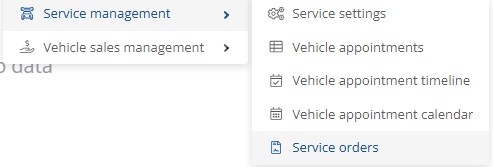
When you tap on the service orders, a new window opens where the different settings are displayed.
Using  or
or  you can create new orders for the vehicle, use to
  edit, duplicate
  , or cancel
  something.
You can create and manage a filter using the three dots . You can also choose the desired time period from the calendar  and decide whether you want to display
  .
.

By clicking on the blue filter  , you can select which information you want to be shown on the page.
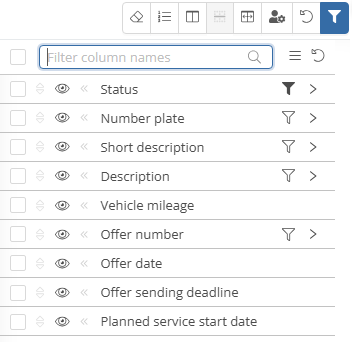
When you click on  , the window for adding the service order opens. Here you can enter the desired information,
then press  or
or  .
.