
Tire settings
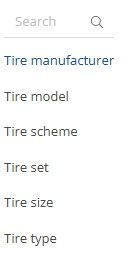
In the Tire settings area, you can enter all the data relating to the tires. On the left-hand side, you will find the following sub-items:
Tire model:
Under the item Tire model, you can add tire models. To do this, you need a tire manufacturer that you created in the previous section.

Tire set:
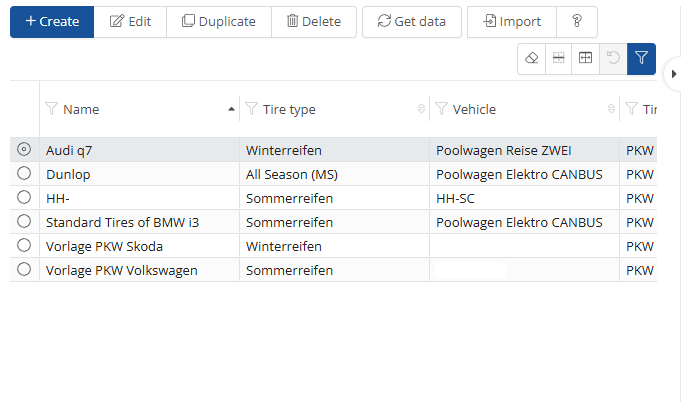
In the Tire set segment, you have the option of adding a new tire set using the  -button. All existing tire sets are clearly displayed in a list. In the Active tire set column, you can check the box to indicate which tire set is currently in use. When you hit the
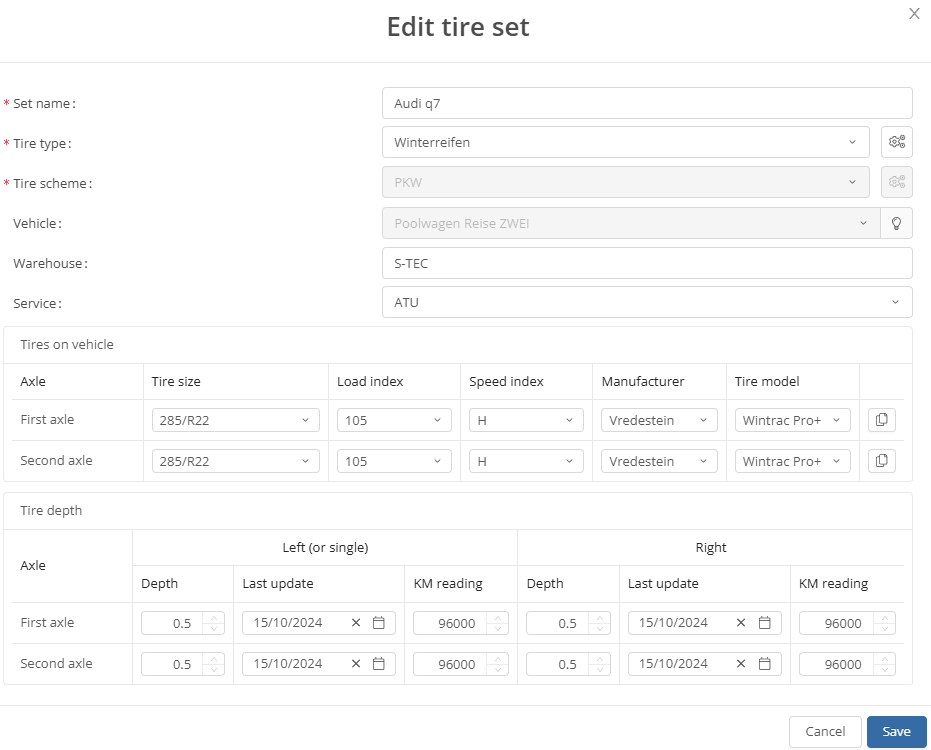
  -button, a window opens, just like when you're creating something. Here, you can adjust all the data. Here you delete something
  , refresh the page
  or import some
  . As well you can change
  the filter to display the desired information.
When you hit the -button, a window opens, just like when you're creating something. Here, you can adjust all the data.

Tire set history:
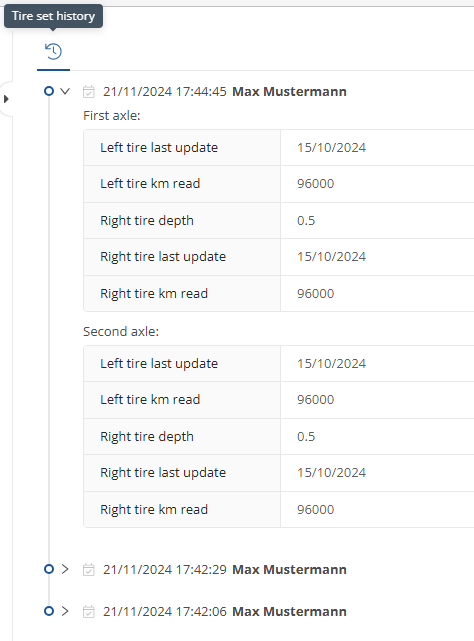
When you click on a tire set in the list, the tire set history is displayed on the right-hand side. This overview shows you when changes were last made.
You can also upload tire data directly using the  -button. By clicking on the
  , you will find a detailed description of how this import file must be formatted to be uploaded.
Tire scheme:
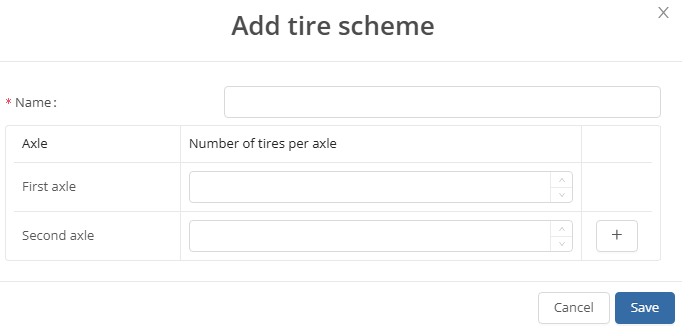
In the Tire scheme area, you can configure different tire schemes. These schemes are then available for selection in the tire settings when you create a new tire set. Using the  , you can select up to four axles.
Tire manufacturer:
In the Tire manufacturers sector, you can create tire manufacturers so that you can select them when creating a tire set.

Tire type:
In the Tire type area, you can create different types. You have the option of adding a new tire set using the -button. When you hit the -button, a window opens, just like when you're creating something. Here, you can adjust all the data. Here you delete something , refresh the page or import some . As well you can change the filter to display the desired information.
