User management
In user management, you can add and edit users and configure additional settings. You can select a user with a single click and view details by clicking the -button.
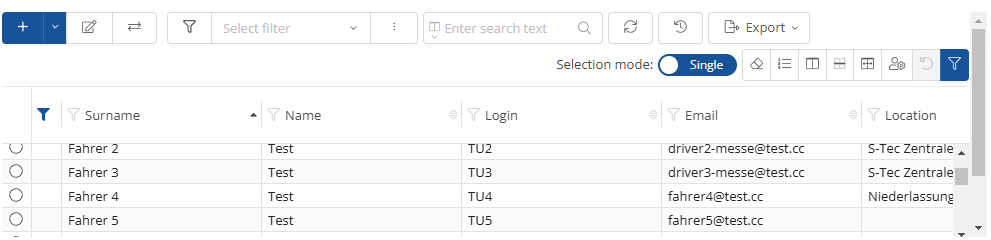
To add a user, click on the  -button. In the window that opens, you can enter all the relevant data for the user, which is divided into categories.
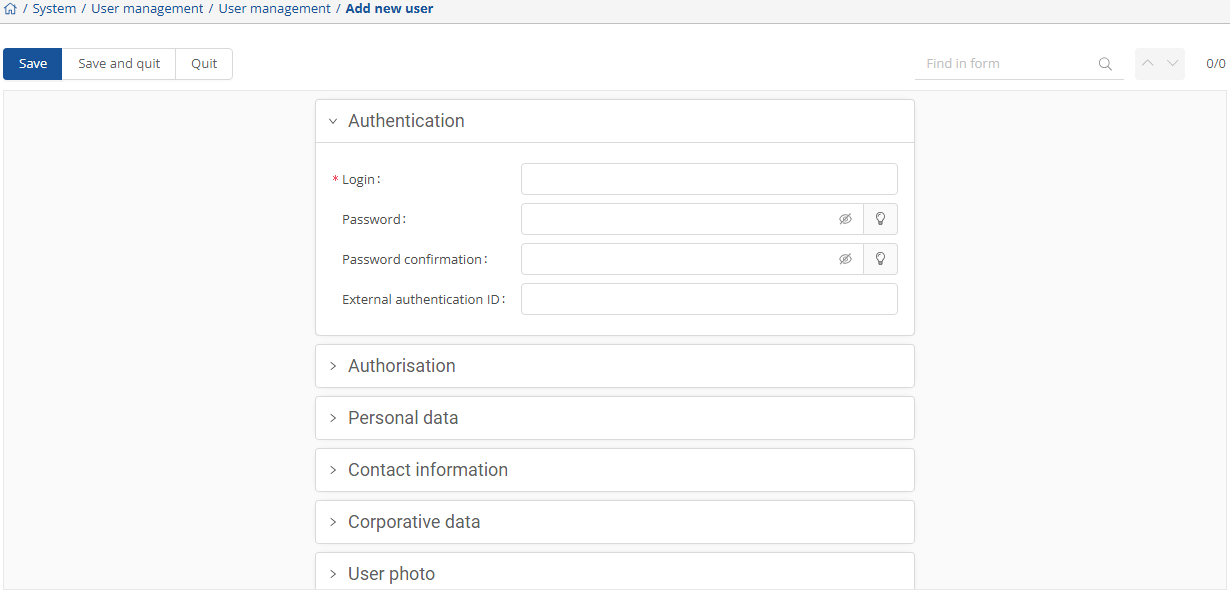
When entering data, all fields marked with an asterisk are mandatory.
Once you have entered all the information, you can save your details by tapping the  -button. Your details will be saved and the input window will close when you press the
  -button.
Using the arrow on the  -button, you can create an external service user or an external shuttle operator user.
Edit user:
To edit a user, select the relevant user and then hit the  -button. The window that opens is similar to the one for adding a user.
Refresh view:
To refresh the view, select the  -button.
Change lock status:
To lock or unlock a user, please choose that user and then click the  -button.
Export:
You have the option of exporting user data or the user's driver's license data via the  -button.
Detailed view:
To view a user's details, select the relevant user and click on the  -button on the right-hand side of the window. This opens the detailed view, which is divided into two sections:
1. General information

2. Personal data

Under point 1, you will find an overview of all vehicles, vehicle groups, and passenger groups that have been approved for the user. You will also see all identification units that have been assigned to the user. Use the  -button to add new vehicles, groups, or identification units to the user.
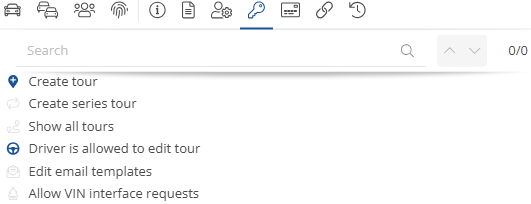
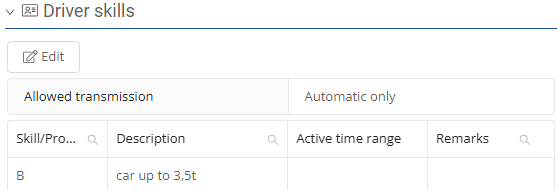
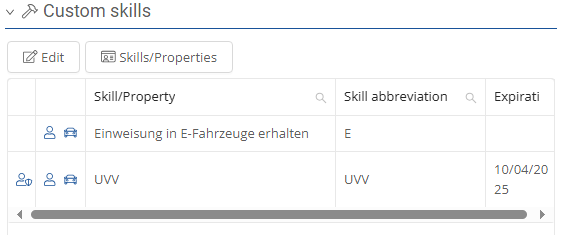
Under point 2, you will find personal data, including general information, user documents, driving skills, user-defined skills, authorizations, linked cards, and keychain authorizations. Under the last point, you will find the change log, where you can view any changes that have been made.
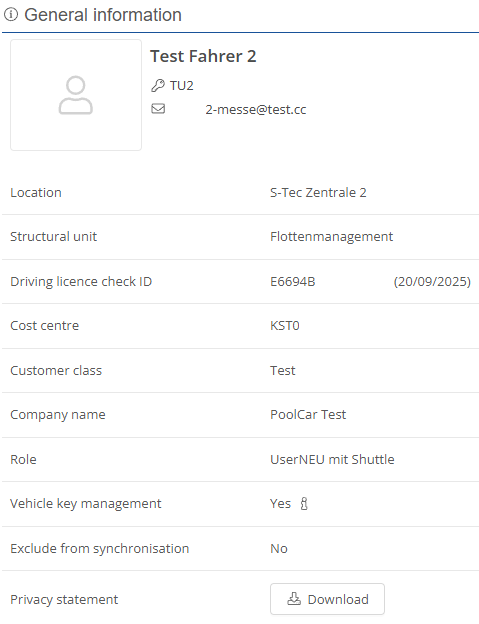
General information:
Under General information, you will find all important user data.
Documents:
Under the Documents option, you will see all documents that have been uploaded and saved for the selected user.
You can upload documents using the  -button.
Personal data:
Personal data includes driving skills and user-defined skills.
Permissions:
Under the  -symbol, you can see all the permissions that the user has.