
Create tour
To create a tour, you can click on the  -button on the home screen or go to the tour management and click on
  .
.
Here you can choose from the following travel options :
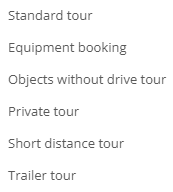
You can then create a new tour by entering all the relevant data.
Travel details:
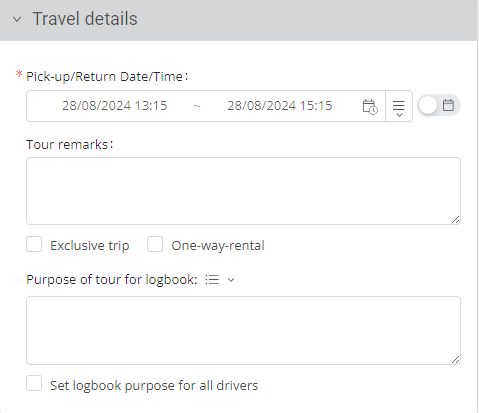
In the tour details, you can enter the date and time of pick-up and return. In addition, you can create a comment for the tour (e.g. tour to customer) and you can specify whether it is an exclusive tour or a one-way rental.
Exclusive tour:
An exclusive tour is a tour in which no one is admitted as a passenger. This means that no one is suggested as a passenger and you travel alone.
One-way rental:
A one-way rental is a rental of a vehicle from a subcontractor (Sixt, Europcar, etc.). This means that the vehicle is only picked up or dropped off.
Vehicle properties:

In the vehicle properties, you have the option of specifying your preferences for the vehicle to be reserved.
If you check the box next to automatic/gearbox accepted as an alternative, you will also be shown vehicles that do not have the desired gearbox.
Route:
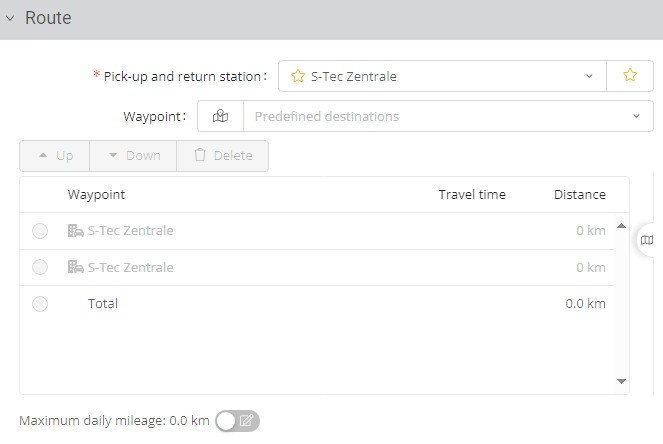
The pick-up and return stations must be specified in the Route section (mandatory field). If you have not selected a one-way rental, the pick-up station is the same as the return station.
By specifying waypoints (mandatory field), the journey can be better planned in advance. By selecting waypoints from the list, you can move them up ( ), move them down (
 ) and delete them (
 ) from the list using the buttons.
You can adjust the maximum daily mileage by clicking on the  -button.
You also have the option of displaying the route on a map. To do this, click on the  -button. A small view will now open, which can also be enlarged (
 ).
).
Participants:
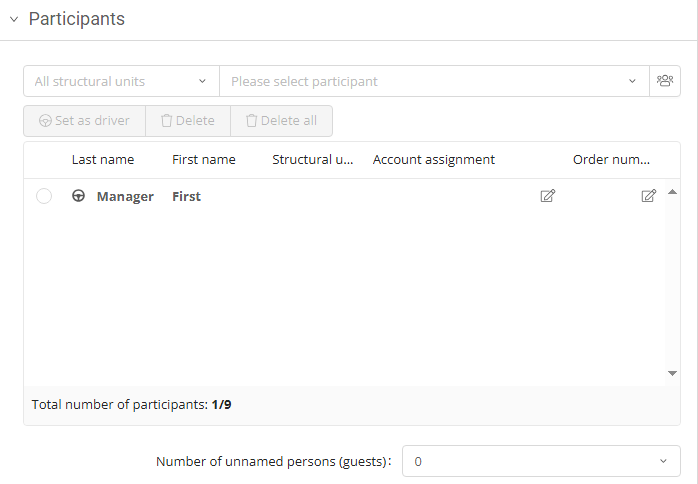
Under Participants, you can add further participants to your tour. Under Structural unit, you can select the various departments. The participants are then filtered according to the selected department.
The person who plans the tour is automatically the driver. If you want to specify another participant as the driver, select the relevant participant from the list and then click on  .
.
If you cannot name the driver by name, you have the option of selecting a participant who is not named as a guest.
To remove participants from the reservation, click on  .
.
You also have the option of adding up to two participants who do not belong to your organization.

To save the tour and close the reservation window, click on  .
.