
Tour management
You can see your current reservations and past tours in Tour management. You can edit tours and cancel reservations.
By clicking on the  -button, you can show or hide the detailed view.

Filter by tours:
First of all, you can filter the vehicles by location ( ). You can also search for journeys using the search function.
Create new tours:
To create a new tour, click on the  -button. A detailed description of how to create a new tour can be found here.
Edit reservation:
Once you have selected a tour, you can edit it via  .
.

Edit user account assignment:
Click on  to edit the user account assignment. Here you can enter a corresponding user account or the cost center of the corresponding tour.
Copy reservation:
If you drive a trip more than once, you can copy a selected trip by clicking on  . The create tour window then opens with the data already entered. Now you only need to adjust the time and you have saved yourself the other details.
Cancel tour:
If a tour is no longer required, you can cancel your tour using the  -button. The entire tour will then be deleted, including for all participants.

Leave tour:
If you are a participant in a tour but no longer wish to take part, you can cancel the tour via  .
.
If you are entered as the driver of the tour, the tour remains and another participant becomes the driver; if you are the last participant of the tour and click on cancel, the tour is canceled.
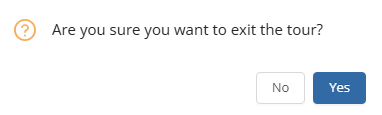
Drive Check-In:
30 minutes before the tour starts, you can check into the tour using the  -button.
Submit damage report:
Damage to a vehicle can happen to anyone. To enter this, you can click on the  -button. The damage report will then open.
End the tour:
To end a tour, click on the  -button. You can find a detailed description in the chapter End tour.
Assigned vehicles:
To see which vehicles are assigned to the booking, click on the  -button. A list of the corresponding vehicles will then be displayed.
History:
The  -button shows you at which point in time which steps of the tour have taken place.
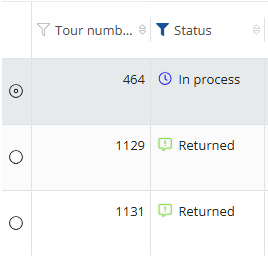
Car rental management:
The  -button takes you to the car rental management.
Delegated processes:
To change the status of a tour retrospectively, select the corresponding tour and then click on the  -button. In the window that then opens, you will see the drivers entered for the tour and can change the status by clicking on the
  -button.
Before you do this, please check in advance whether this vehicle is actually eligible for a status change.
The following status changes are possible:
Invalid
Overdue
Return Overdue
Checked in
Confirmed