
Identification unit
Identification Unit:
You can add new identification units in the identification unit menu. You can edit or delete existing units or change their status.
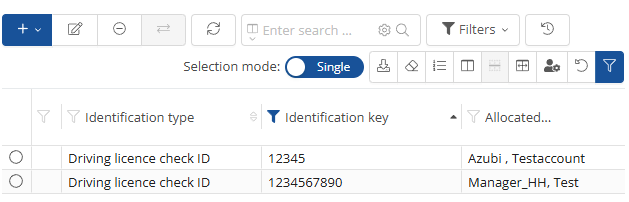
To add a new identification unit, click on the  -button. A drop-down list then opens from which you can select an identification unit.
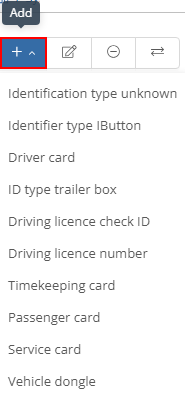
By clicking on one of the units in the list, a new window opens where you can enter all the relevant data, such as key number and person.

Click on the  -button to save the new identification unit.
Click on the  -icon to open another window, which is similar to the one for adding. There you can then adjust the data to be changed.
To change the status of an identification unit, select it and then click on the  -button.
Identification unit:
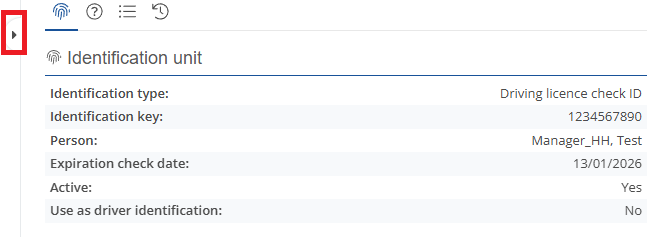
You can view the details of an identification unit by selecting it. A window will then open on the right-hand side where you can view the data for the selected unit.
IDs not assigned:
You can see unassigned IDs by selecting the question mark in the right-hand window.
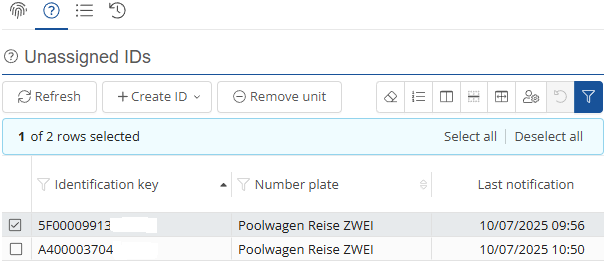
If you have selected an unassigned identification key, you can assign a new ID using the drop-down list under the Create ID-button.
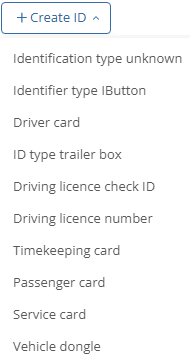
If you want to remove an unassigned identification key, you can delete it using the  -button.
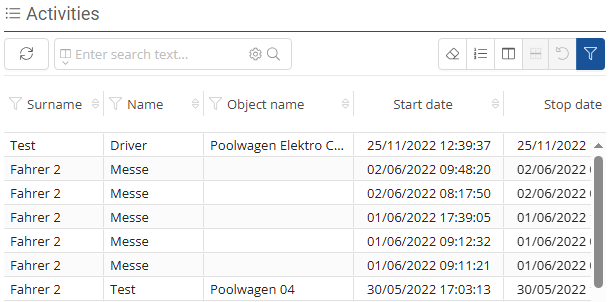
Activities:
Here, the driver's activities can be viewed and updated.
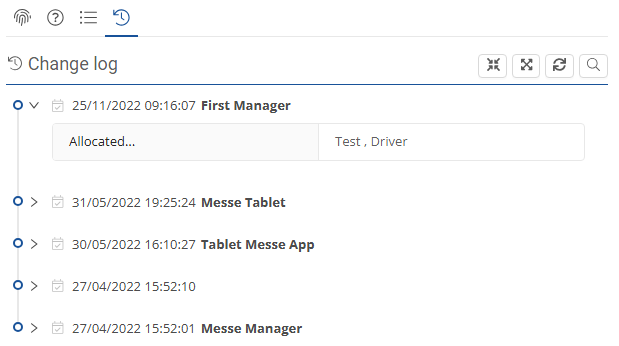
Change log:
The change history and who changed what.
...